How to connect Zoom remote guests to in-studio podcast setups
Zoom remote guest podcast recording works best with mix-minus and separate tracks. Connect studio audio, prevent echo, and verify saved files before interviews.

.svg)
.svg)
Instead of repairing echo and missing guest audio after an interview, connect Zoom to your studio with a mix-minus return and separate recording paths. For Zoom remote guest podcast recording, send studio microphones to the guest, keep the guest’s voice out of that return, and record both sides before you start the conversation.
TL;DR
A remote guest adds another audio path to your studio. Getting the guest into your headphones does not mean the recorder captures the guest, and hearing the host does not prove the guest receives a clean return.
Mix-minus sends the guest everything needed for the conversation except the guest’s own voice. Without it, the guest can hear a delayed copy of themselves. That distraction stops a natural interview fast.
Dialed Studios is best for entrepreneurs who want done-for-you podcast production rather than a room rental. Fully customized branded sets, a dedicated producer and engineer, and guaranteed 48-hour editing turnaround support that production model. The trade-off is coordination: your guest connection and delivery requirements still need a clear brief.
For your 2026 production checklist, treat remote audio routing as a separate task from cameras, lighting, and set design.
Do not assume every mixer exposes the same controls. Hardware routing labels differ; follow its manual for the mix-minus or auxiliary-send configuration. The Zoom labels below refer to desktop controls, not your mixer’s interface.
Your studio needs distinct paths for the microphone send, guest playback, and recording. Write those paths down before connecting applications.
Expected result: The guest hears the studio microphones. Everyone in the studio hears the guest. The recorder receives both sides without feeding the guest back into the meeting.
Use these labels on your routing sheet:
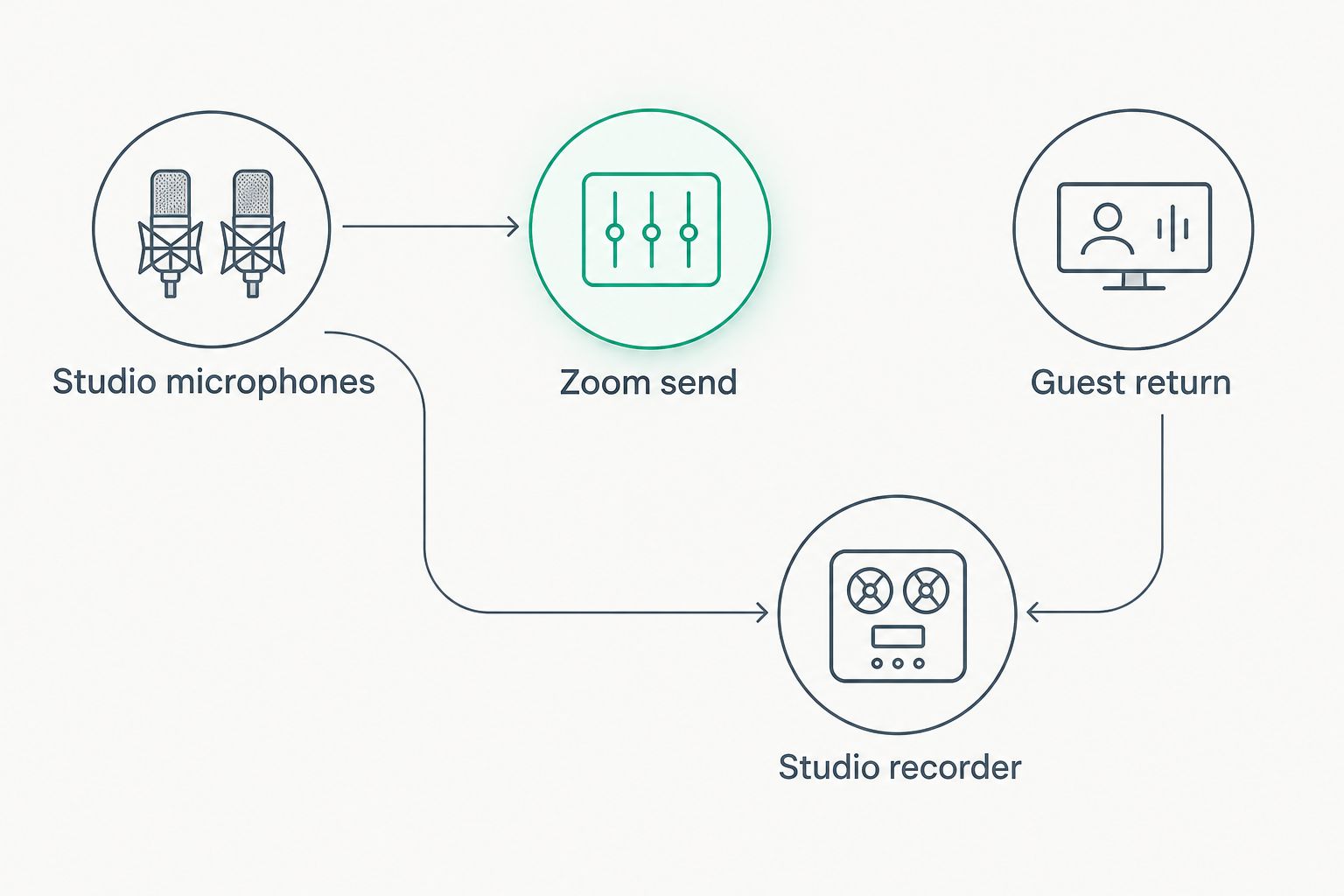
Keep the guest return out of the Zoom send to prevent an electronic echo loop.
The routing map is your first diagnostic tool. If the guest hears an echo, trace the guest return before changing microphone processing. Noise suppression cannot fix a signal deliberately routed back to its source.
For a 2026 Zoom setup, select devices explicitly rather than relying on the computer’s changing default input and output. Reconnects and hardware changes deserve another check.
Expected result: Zoom receives the studio mix through the selected microphone device and sends the guest through the selected speaker device. No one hears a delayed copy of their own voice.
Start with Zoom’s standard speech processing and listen. Original sound for musicians is an alternative audio profile, not an automatic podcast-quality upgrade. It preserves more of the incoming sound, including unwanted room sound.
Use that profile only after checking the microphones, room noise, and headphone routing. Do not disable useful processing merely because the recording takes place in a studio. The remote guest’s room matters too.
A working conversation is not proof of a working recording. Test the files, not just the headphones.
Expected result: You have opened an actual saved file and heard both sides. The studio recorder and meeting recording cover the intended sources, and recording permissions are resolved.
Keep this playback check in your 2026 session template. Monitoring can sound correct while a recording application listens to the wrong input.
Both approaches below use Zoom for the conversation. They differ in what the editor receives.
Zoom meeting recording only
Zoom plus separate local recordings
Use separate local recordings for a published interview when the guest can manage the extra step. Keep Zoom recording as an additional reference. A local guest file helps only if it is actually recorded, saved, and delivered.
For editing decisions after capture, use the guide to audio editing software for podcasters. Choose the editing workflow around the files you have, not files you hoped to capture.
A guest-side recording captures the guest’s microphone independently of the audio transmitted through Zoom. That gives the editor another source when the call contains interruptions.
Expected result: The editor receives a studio recording, a guest-side microphone file, and a meeting reference. Each file has an identifiable speaker and session name.
For your 2026 guest instructions, keep the backup procedure separate from the interview outline. A guest should not need to learn an unfamiliar recording application while answering the opening question.
The downside is extra guest responsibility. If the guest cannot verify a local recording, prioritize a stable, tested Zoom connection rather than adding an untested application mid-session.
First confirm that everyone uses headphones. Then mute the guest-return channel’s contribution to the Zoom send. If the echo stops, the return was being sent back electronically.
Fix the routing rather than muting the guest’s recording channel. The guest still needs to reach studio headphones and the recorder.
The headphone mix and recording inputs are different paths. Inspect the recorder’s input assignment and route the guest return to a recorded channel.
Repeat the saved-file test. A moving meter on the mixer does not prove that the recording application receives that channel.
Check Settings, Audio, and Microphone. Select the intended studio device, confirm the computer grants microphone access, and check that the device’s send contains the microphones.
Speak into each microphone separately. A working host microphone does not prove a second microphone is included in the send.
Ask the guest to stop competing uploads and downloads, then retest the connection. If practical, use a wired network connection. Check the local backup independently; a connection problem does not prove the microphone recording is damaged.
If words were lost, repeat the answer while the guest is still present. Editing cannot recover speech that no recording captured.
Listen for duplicate playback paths: the same voice might reach the recording through the guest return and a second computer-audio route. Monitor each recording input separately, then remove the unwanted duplicate.
Do not confuse this with room echo. If the hollow sound exists in the guest’s local microphone file, address microphone placement and the room instead.
Build a repeatable handoff around the recording, not just the meeting invitation. Your 2026 production brief should identify the guest, recording owner, file labels, synchronization cue, and intended deliverables.
For video, test the guest’s framing before the interview and decide how the remote image fits beside the studio footage. Fully customized branded sets establish the in-studio presentation; they do not correct a poorly framed remote camera.
Dialed Studios podcast production combines those customized sets with a dedicated producer and engineer, editing, and content strategy. The guaranteed 48-hour editing turnaround gives your publishing plan a concrete production commitment. Agree on recording requirements and delivery scope before the session rather than leaving them to the edit.
Plan your podcast production
Discuss fully customized branded sets, dedicated production support, and guaranteed 48-hour editing turnaround.
How do I connect a Zoom guest to a studio podcast?
Send the studio microphones into Zoom and route Zoom playback to headphones and a separate recording path. Exclude the guest return from the Zoom send to create mix-minus, then verify a saved test recording.
Why does my remote podcast guest hear an echo?
The guest hears an echo when their voice returns through speakers or an electronic routing loop. Use headphones and remove the guest-return signal from the mix sent into Zoom.
Do I need a mixer for Zoom remote guest podcast recording?
You need routing that keeps the guest return separate from the studio send; that does not always require a standalone mixer. An audio interface with suitable routing can serve the same purpose, but confirm its capabilities before the session.
Should I turn on Original sound for musicians for a podcast?
Use Original sound for musicians only after listening to a test of the actual room and microphones. Preserving more incoming sound also preserves unwanted background and room sound, so the setting is not automatically better for speech.
Can I record the guest separately from the studio hosts?
Yes, if your recording setup routes the guest return to its own track. A guest-side local microphone recording provides another separate source, but you must test it and collect the saved file.
What is the best recording workflow for a published remote interview?
Use Zoom for the conversation, record studio microphones separately, and add a verified guest-side local recording when practical. This gives the editor more control but adds file collection and synchronization work.
Can Dialed Studios handle done-for-you podcast production?
Dialed Studios offers done-for-you podcast and video production in Denver, including fully customized branded sets, a dedicated producer and engineer, editing, and content strategy. Its guaranteed 48-hour editing turnaround supports a defined publishing workflow; discuss your remote-guest requirements before the session.
The most useful remote-session check happens after you press stop. Open the test recording and listen to both speakers. That catches the silent guest track that a perfectly comfortable headphone conversation can hide.