Automatically turn podcast episodes into short-form clips
Build a podcast to short form clips workflow that automates handoffs, not unchecked publishing. Set up episode intake, clip drafts, review, and distribution.

.svg)
.svg)
Instead of manually finding, cutting, captioning, and sending podcast highlights after every recording, build a podcast to short form clips workflow that passes approved episodes into clip production and routes finished drafts to review. Automate the handoffs and any editing actions your chosen software supports; keep a human approval gate before publishing.
TL;DR
Dialed Studios is best for Denver entrepreneurs who want done-for-you podcast production rather than a room rental. Fully customized branded sets, a dedicated producer and engineer, and the guaranteed 48-hour editing turnaround put production support behind your recording. Explore Dialed Studios if you want that production partnership instead of managing every recording task yourself.
Your clipping workflow still needs clear rules. An episode contains context that a short excerpt can lose, and an automatic crop can hide a guest while keeping the host visible. A technically successful export is not necessarily a publishable clip.
For your 2026 workflow, separate production from distribution. A finished recording becomes the source for drafts; a reviewed draft becomes the source for publishing. Never treat an uploaded file as permission to post it.
The field names below are labels you create in your tracker or workflow. They are not claimed interface labels for a particular vendor. Use the exact action names documented by your chosen integration when configuring its controls.
Choose who owns editing before choosing an automation service. Otherwise, you will build file transfers around a process nobody has agreed to run.
Done-for-you production
Self-managed clipping workflow
Dialed Studios podcast production includes a dedicated producer and engineer, fully customized branded sets, and the guaranteed 48-hour editing turnaround. Those are production commitments, not evidence of a particular software integration or an automatic social-publishing service.
Confirm the short-form deliverables separately. Agree on clip selection, caption treatment, export formats, and revision handling before connecting your workflow. Do not interpret an editing turnaround guarantee as a guarantee that every social post will be published within that window.
The intake stage decides which file enters production. In 2026, use an explicit approval status rather than letting every new recording trigger editing.
Expected result: one approved episode version creates one tracked production job. Uploading an unfinished file or retrying a completed event does not silently create another batch.
Test intake with a real approved file before building the remaining stages. Open the destination account and verify that it can read the video itself, not just the filename or a preview page.
Clip production turns a source episode into reviewable excerpts. Automate only the actions your editor documents; if it lacks an import or rendering integration, route the job to an editor instead of pretending the cutting step is automatic.
Expected result: the editor receives the correct episode, a specific brief, and the intended export settings. You can identify which source version produced each draft.
A customized branded set gives the original recording a deliberate visual setting. The vertical crop still needs review: a composition that works across a wide frame does not automatically work in a narrow one.
Review routing connects production to publication without confusing them. Keep the stages visible so you can identify whether a clip is waiting for editing, feedback, or final approval.
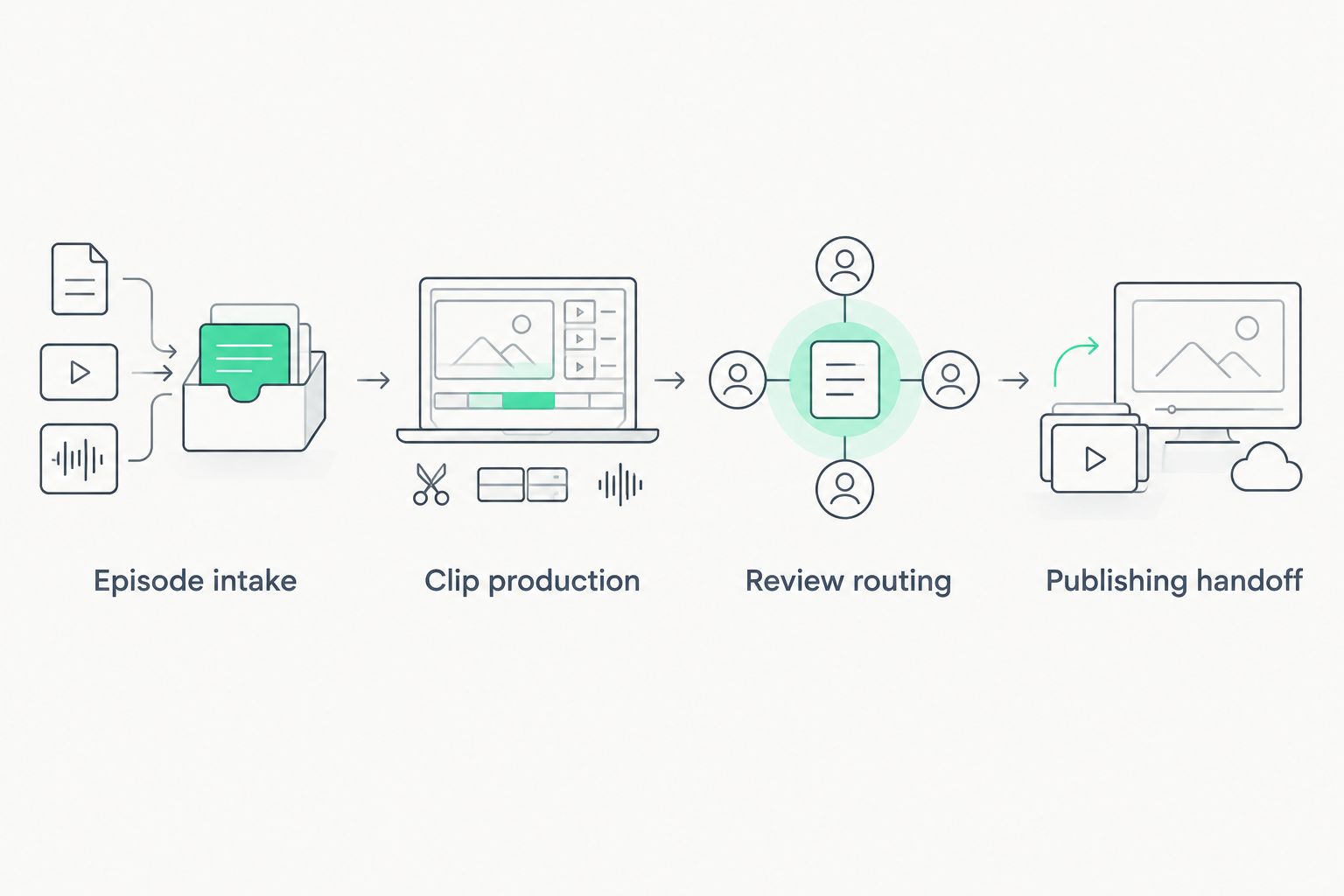
Keep review between production and publishing so a completed render cannot bypass approval.
Expected result: every draft has a visible owner and an explicit decision. A completed render remains unpublished until someone approves it.
For your 2026 caption template, test placement in the intended destination's preview. Interface overlays differ, so review where captions appear rather than assuming the export canvas is entirely unobstructed.
Publishing should consume approved exports, not working drafts. Keep this boundary even when the same person edits and posts.
Expected result: only approved exports enter distribution, and each destination has its own tracked status.
Run an end-to-end test before enabling unattended handoffs. Deliberately reject a draft and verify that it stops. Then approve a corrected version and confirm that the workflow sends only that version.
An updated episode needs a version-aware workflow. Reusing the original filename is not enough to tell downstream systems which edit is current.
Increase Source version when you replace the approved master. Trigger production from the new version, then mark existing drafts as Superseded if the correction affects them. Keep old records for traceability rather than deleting the history.
Do not automatically replace approved or scheduled clips. A small episode correction can affect an excerpt, its captions, and its accompanying copy. Route affected clips back through review and confirm any scheduling changes separately.
This variant is useful when you correct a speaker's name, remove a passage, or replace an unfinished export. If only the episode title changes, update the metadata without starting another rendering job.
Check access from the receiving account. A working link in your own browser does not prove the integration can download it. Supply the supported file reference or authorized download method, then test retrieval before retrying production.
Inspect the intake trigger and processing key. Upload events, status changes, and retries can start the same work more than once. Check Episode ID plus Source version before accepting a new job, and retain the result of successful submissions.
Revise the selection brief and review the source passage. Include the question or qualification when the answer depends on it. A shorter cut is not better when it changes the meaning; request a different excerpt instead.
Check the caption text against the recording, especially names and specialist terms. Review the vertical export for the active speaker and gestures. Correct the template or draft, then render and approve the replacement file.
Check which stage is complete. Editing completion, scheduling acceptance, and publication are different events. Keep separate states and inspect the publishing handoff rather than sending the entire episode through production again.
Build your 2026 workflow around a recurring editorial brief. Define the audience, the problem each clip addresses, and the subjects you will not excerpt without additional context. Reuse those decisions across episodes instead of rewriting instructions after every recording.
For an entrepreneur, the next step is not necessarily more clips. It is a clearer relationship between the episode topic, the excerpt, and the action you want the viewer to take. Start with the content strategy guide for business coaches if that matches your audience.
Dialed Studios can serve as your creative partner for podcast and video production, with fully customized branded sets, a dedicated producer and engineer, and the guaranteed 48-hour editing turnaround. Bring the workflow brief into the production conversation and confirm the short-form scope rather than assuming every automation step is included.
Plan your podcast production
Discuss customized branded sets, dedicated production support, and the guaranteed 48-hour editing turnaround.
How do I automatically turn a podcast episode into short-form clips?
Connect approved episode intake to an editor with documented automation support, then route rendered drafts to human review. Automate publishing handoffs only after approval; if the editor lacks supported processing actions, assign editing as a manual task.
What's the best podcast to short form clips workflow for entrepreneurs?
The best workflow for an entrepreneur separates episode approval, clip production, review, and publishing. Choose done-for-you production when you want a production partner, or a self-managed workflow when you want to maintain the editing tools and integrations yourself.
Can I automatically publish every generated podcast clip?
Do not publish generated clips without review. Check context, captions, framing, permissions, and the final export before giving the publishing system an approved asset.
What video format should I use for vertical podcast clips?
A 9:16 aspect ratio with a 1080 × 1920 pixel canvas is a practical vertical-video template. Confirm the destination's current requirements and preview caption placement before publishing.
Do I need a video podcast to make short-form clips?
You do not need video footage to create a video asset from podcast audio. An audio-only episode requires a separate visual treatment; it cannot produce footage of the speakers that was never recorded.
Does Dialed Studios provide more than a studio room?
Dialed Studios provides done-for-you podcast and video production in Denver, including fully customized branded sets, a dedicated producer and engineer, editing, and content strategy. The brand states a guaranteed 48-hour editing turnaround; confirm the specific short-form deliverables and handoff requirements before production.
What should happen when I replace an episode master?
Create a new source version and send affected clips back through review. Do not silently replace scheduled assets, because the revised excerpt can also require caption and post-copy changes.
For your 2026 workflow, test rejection before testing publication. A system that sends an approved clip proves the happy path works. A system that stops a rejected clip proves your approval gate works.
Keep that test in your setup checklist. Whenever you change an integration, trigger, or status rule, confirm that an unapproved draft still cannot reach distribution.